📸 How to Upload Images & Get Direct Links
Follow these simple steps to get direct image URLs for your customization
1Method 1: Using postimg.cc (Recommended ✨)
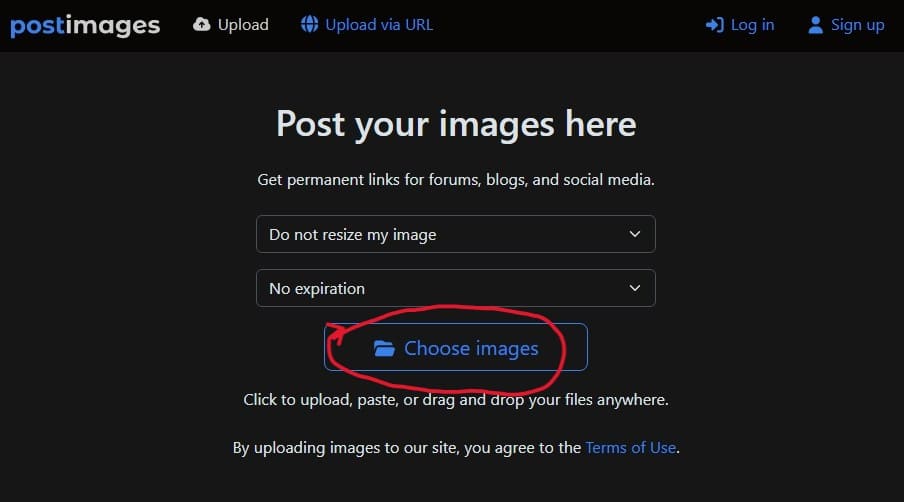
Step 1: Upload Your Image
• Open your browser and go to: https://postimg.cc
• Click "Choose Images" or drag & drop your photo
• Wait for the upload to complete
Step 2: Copy the Direct Link ⚠️ IMPORTANT
After upload, scroll down to the links section:
• ✅ COPY the "Direct link" (starts with https://i.postimg.cc/...)
• ❌ DO NOT copy the top "Link" (this goes to a webpage, not the image)
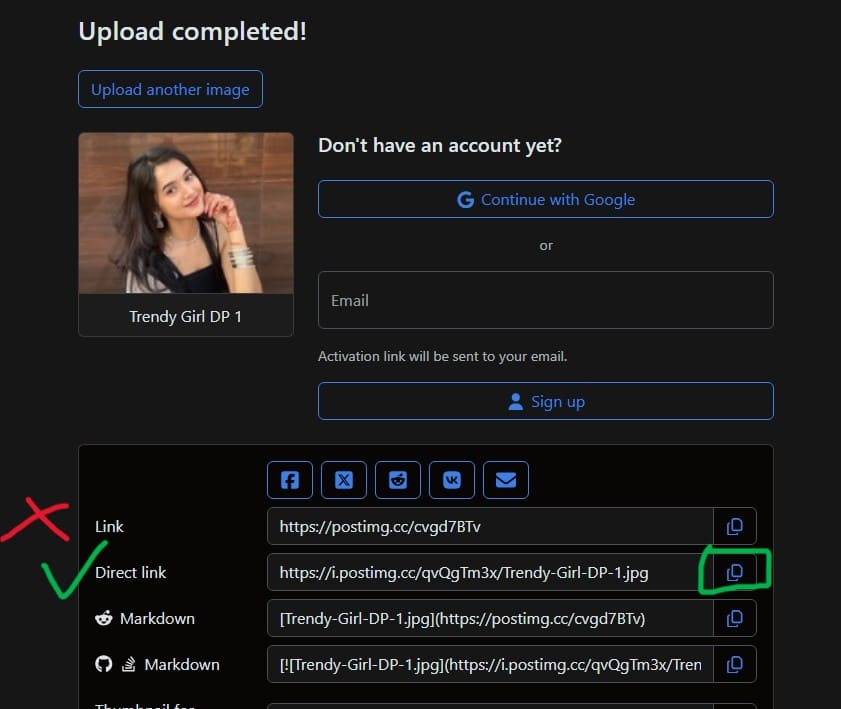
💡 Tip: Open the direct link in a new tab. You should see ONLY the image (no website around it). That's the correct one!
2Method 2: Using imgbb.com (Alternative)
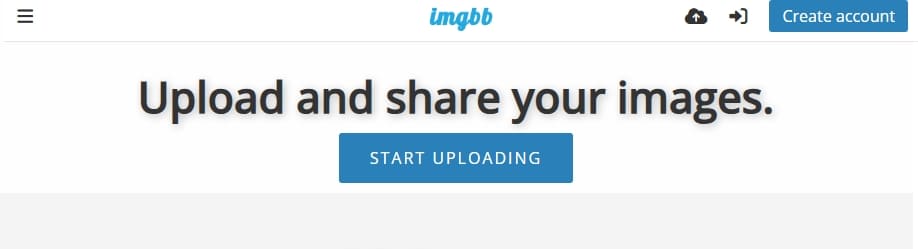
Step 1: Upload Your Image
• Go to: https://imgbb.com
• Click "Start uploading" or drag & drop your image
• Wait for the upload to finish
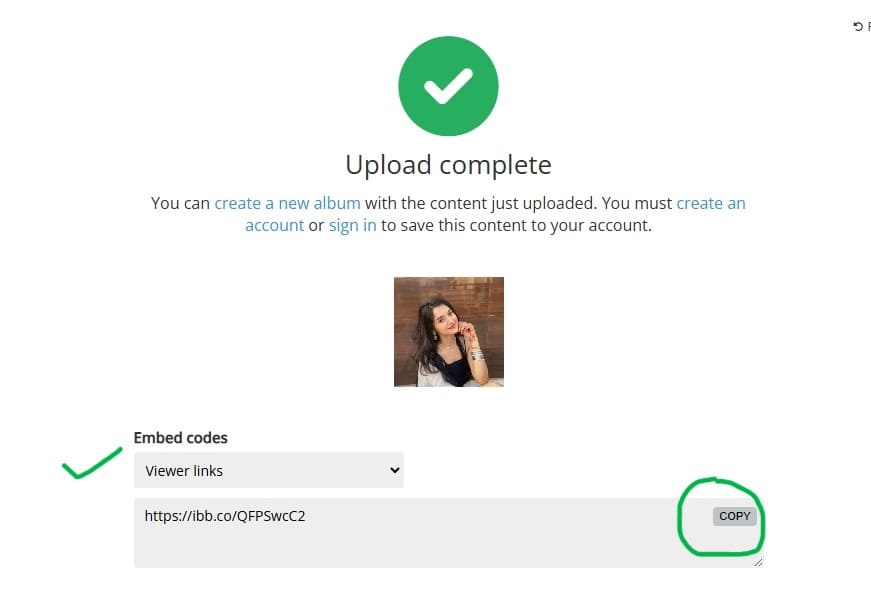
Step 2: Copy the Viewer Link
After upload, look for "Viewer links" section and copy the provided link
Step 3: Get the Direct Image Link
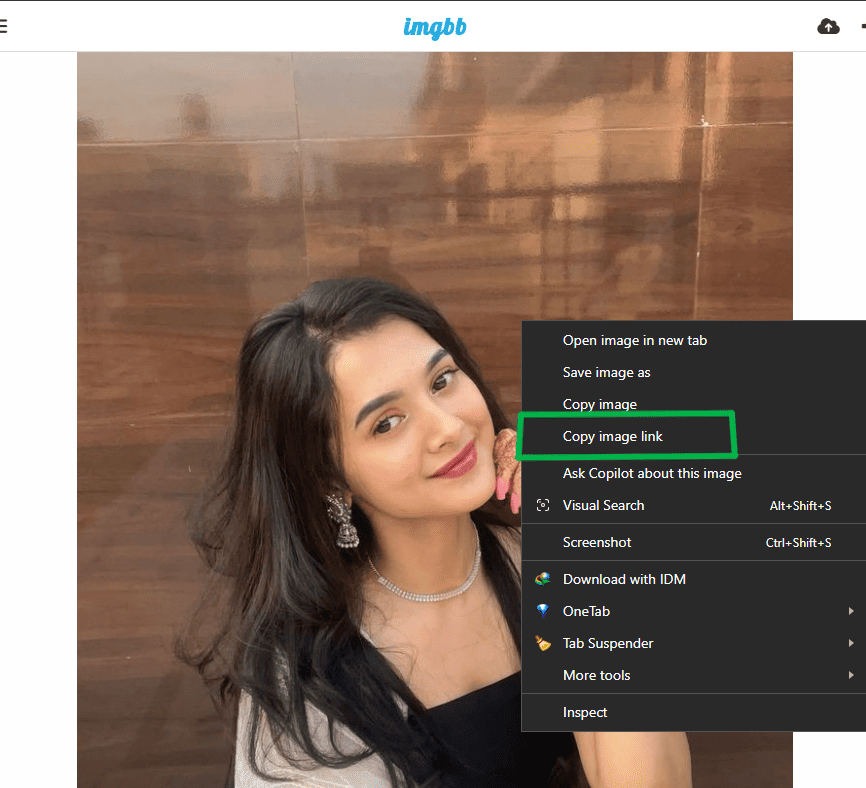
💻 On Laptop/Computer:
• Open the viewer link in a new tab
• Right-click directly on the image
• Select "Copy image address" or "Copy image link"
📱 On Phone/Mobile:
• Open the viewer link
• Long-press (tap and hold) on the image
• Choose "Open image in new tab"
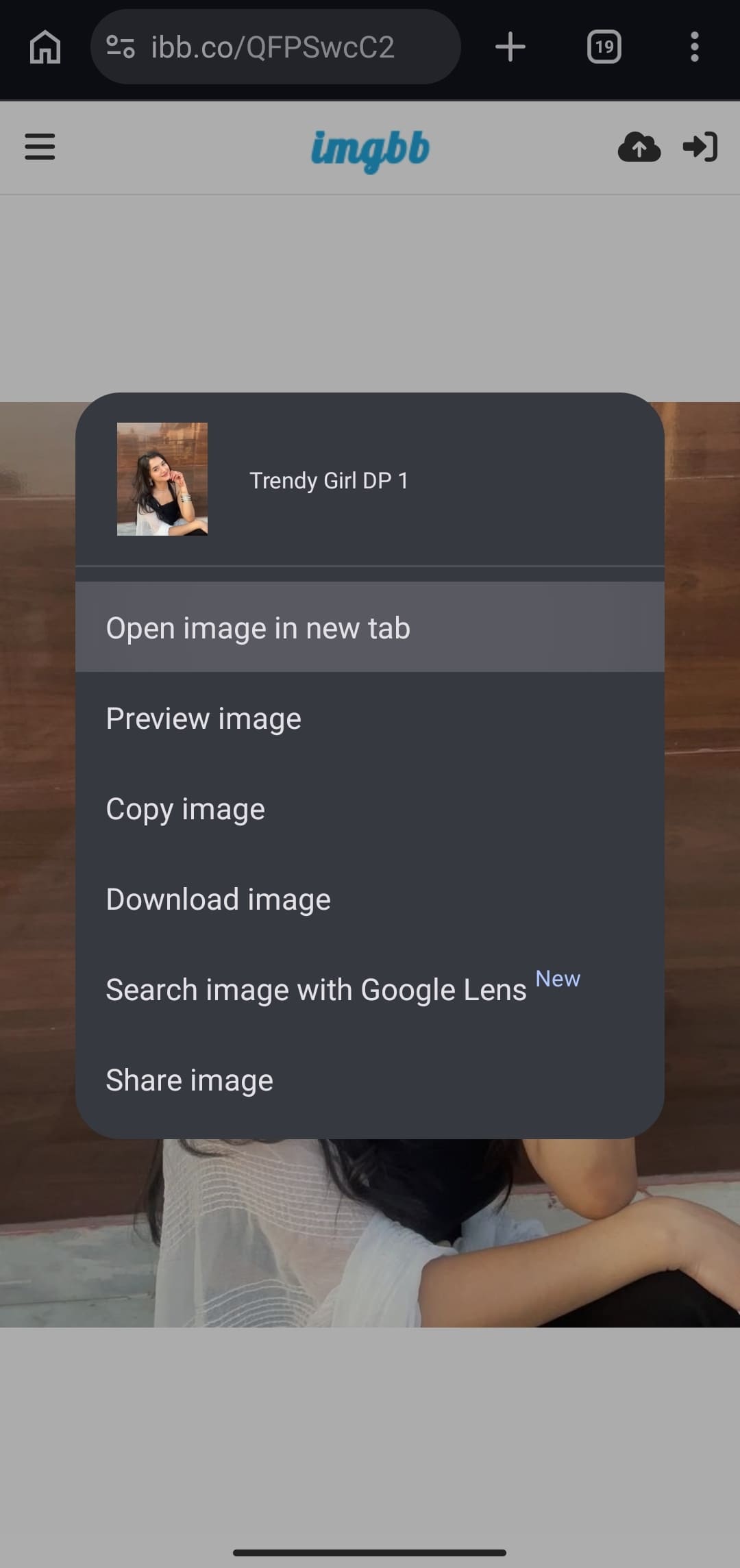
• In the new tab, the image will appear full-screen
• Copy the URL from the address bar at the top

⚠️ Important Notes
- ✅Always test the link: Open it in a new tab. You should see ONLY the image (no buttons, no ads, no page layout).
- ❌If you see a webpage: It's not the direct link. Go back and copy the correct one.
- 🔗Direct links end with: .jpg, .png, .gif, .webp, etc.
- 📏Image size: Keep images under 5MB for best performance.